6 min read
git revert vs. git restore vs. git reset: Git's Undo Buttons, Explained
Three commands, three completely different kinds of "undo." Here's how to tell them apart before you reach for the wrong one at 2am.
We've all been there: something's gone sideways in your working directory, you google "git undo," and you land on three different commands that all sort of promise the same thing. So you pick one, run it, and either it fixes everything or it makes things dramatically worse. Let's fix that. By the end of this post you'll know exactly which command to reach for, every time.
Quick note before we start
There's no such thing as git reverse — it's a common mix-up for git reset, which is one of the three commands below. If that's what brought you here, you're in the right place.
The three real "undo" commands
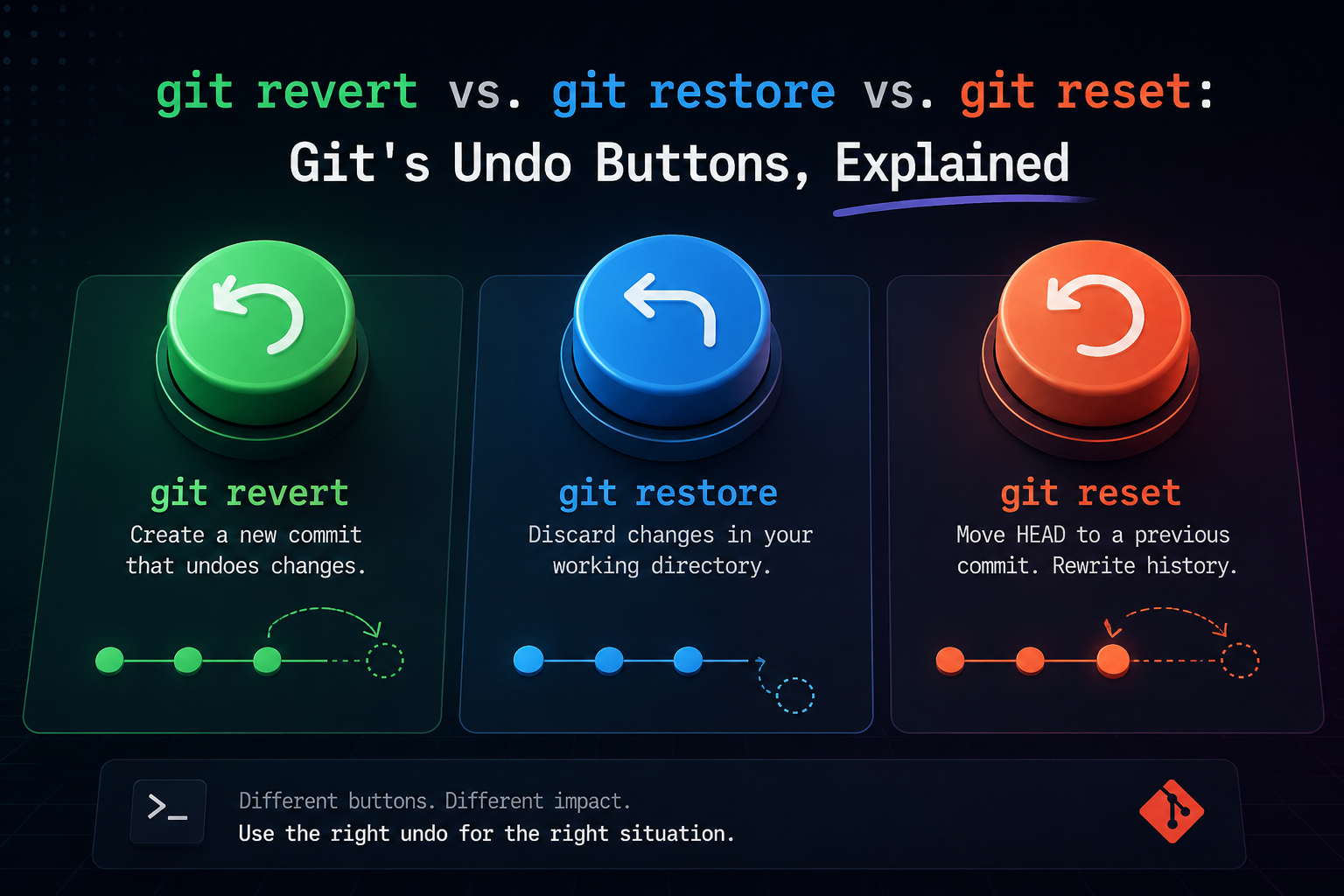
Git actually has three separate tools for undoing things, and they work at three different layers of your project:
- git restore — fixes files in your working directory or staging area. Nothing has been committed yet.
- git revert — undoes a commit that already exists, by creating a brand new commit that cancels it out.
- git reset — moves your branch pointer to a different commit, optionally taking your staged and working changes along with it.
The one-sentence version: restore is for uncommitted messes, revert is for committed-and-shared mistakes, reset is for committed-but-still-local mistakes. Let's go through each one.
git restore — undo changes you haven't committed yet
This is the newest of the three (added in Git 2.23) and honestly the least dramatic. It only ever touches your working directory and staging area — it has no idea what a commit even is, in the sense that it never creates or removes one. That makes it the safest command on this list.
# Discard uncommitted changes to a file, back to the last commit
git restore file.txt

# Un-stage a file — keep your edits, just take it out of the staging area
git restore --staged file.txt

# Restore a file to how it looked a few commits ago (still uncommitted after)
git restore --source=HEAD~3 file.txt
Reach for git restore when:
- You edited a file, hate the result, and want the last committed version back.
- You ran
git addby accident and want to un-stage without losing the edit. - Nothing here has been committed — you're still in the "before" state.
git revert — undo a commit by adding a new one
Once a commit exists and — especially — once it's been pushed somewhere other people pull from, you generally don't want to erase it from history. git revert doesn't erase anything: it looks at what a commit changed, and creates a new commit that applies the exact opposite change. History keeps growing forward; nothing gets rewritten.
# Undo one commit by creating a new "opposite" commit
git revert <commit-hash>

# Revert a whole range of commits, one revert commit per original
git revert <old-hash>..<new-hash>

# Stage the revert without committing yet, so you can tweak it first
git revert --no-commit <commit-hash>
Reach for git revert when:
- The bad commit has already been pushed and others may have pulled it.
- You want a clean, honest record that says "this was undone" rather than pretending it never happened.
- You're undoing something on
mainor any branch people share.
git reset — move the branch pointer (and maybe erase things)
This is the one people usually mean when they say "git reverse." git reset moves your current branch to point at a different commit — typically an earlier one — and it comes in three flavors depending on how much of the "in between" state you want to keep.
# --soft: move the branch back, keep everything staged and ready to re-commit
git reset --soft HEAD~1

# --mixed (the default): move the branch back, un-stage the changes,
# but leave them sitting in your working directory
git reset --mixed HEAD~1

# --hard: move the branch back and throw the changes away completely
git reset --hard HEAD~1
This one can genuinely destroy work
git reset --hard discards changes with no confirmation and no gentle recovery path for anything that was never committed. And resetting a branch that's already been pushed rewrites history out from under anyone who already pulled it — their next pull turns into a conflict-filled mess. Only reset commits that are still local and unshared.
Reach for git reset when:
- The commit(s) you're undoing exist only on your machine — never pushed.
- You want to rewrite history cleanly, e.g. squashing a few messy commits before pushing.
- You've thought carefully about --soft vs. --mixed vs. --hard, not just copy-pasted the scariest one.
Side by side
| Command | What it touches | Rewrites history? | Safe on a shared branch? |
|---|---|---|---|
git restore | Working directory and/or staging area | No — commits aren't involved | Always — nothing beyond your local files changes |
git revert | Adds a brand new commit that undoes an old one | No — history only grows forward | Yes — this is the safe way to undo on shared branches |
git reset | Moves the branch pointer, optionally your staging area and working files too | Yes — commits can vanish from the branch entirely | Only if nobody else has already pulled those commits |
The 5-second decision guide
- Haven't committed yet, just want the old version back? →
git restore - Already committed and pushed, need to undo it safely? →
git revert - Committed but still local, and you want history to look different? →
git reset
restore fixes files, revert fixes history by adding to it, reset fixes history by rewriting it.
The one line worth remembering
None of these commands are dangerous by themselves — the danger is always in reaching for --hard or rewriting a branch other people depend on without thinking it through first. Know which layer you're undoing at, and the right command basically picks itself. Happy (un)committing!